If you use Antigravity on multiple Macs, Synclet (ex ConfigMesh) can keep your settings consistent with encrypted sync.
What gets synced
The Antigravity bundle covers three entries:
settings.json: your editor preferences.keybindings.json: your custom keyboard shortcuts.snippets: your snippet files.
All three live in a single folder:
~/Library/Application Support/Antigravity/User/
├── keybindings.json
├── settings.json
└── snippets/
Only those three entries sync.
Step 1: Download Synclet (ex ConfigMesh) for macOS
Install the latest macOS build:
Sign in after installing.
Step 2: Pick one setup path
You can either use the existing Antigravity bundle, or create your own.
Option A: Import the existing Antigravity bundle
- Open Synclet (ex ConfigMesh).
- Go to bundles.
- Import/select the
Antigravitybundle.
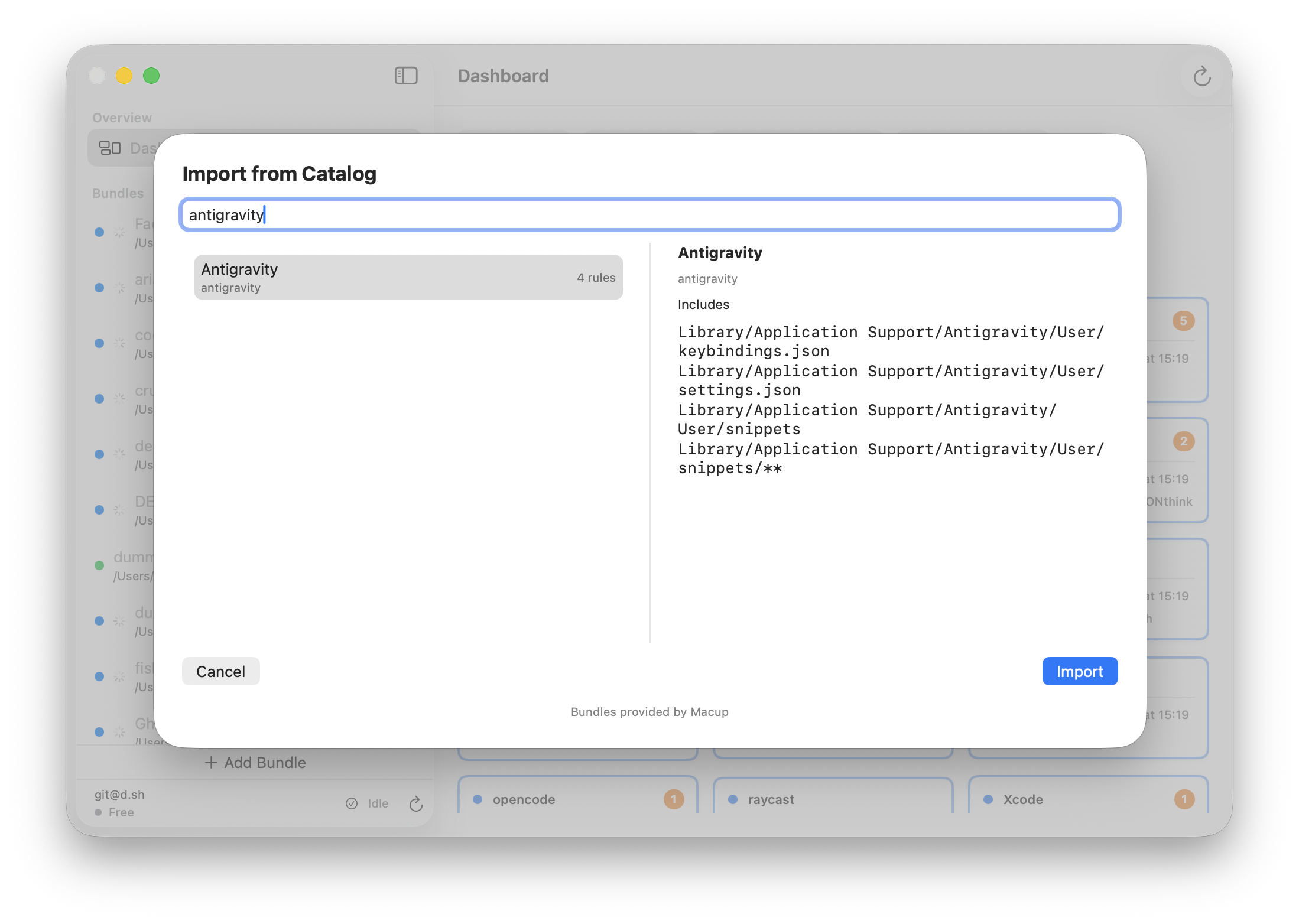
Option B: Create a new Antigravity bundle manually
Click
Choose Folder…next to Bundle Root, press Command-Shift-G, and enter:~/Library/Application Support/Antigravity/User/Name the bundle, then click
Create.Add these include rules:
keybindings.jsonsettings.jsonsnippetssnippets/**
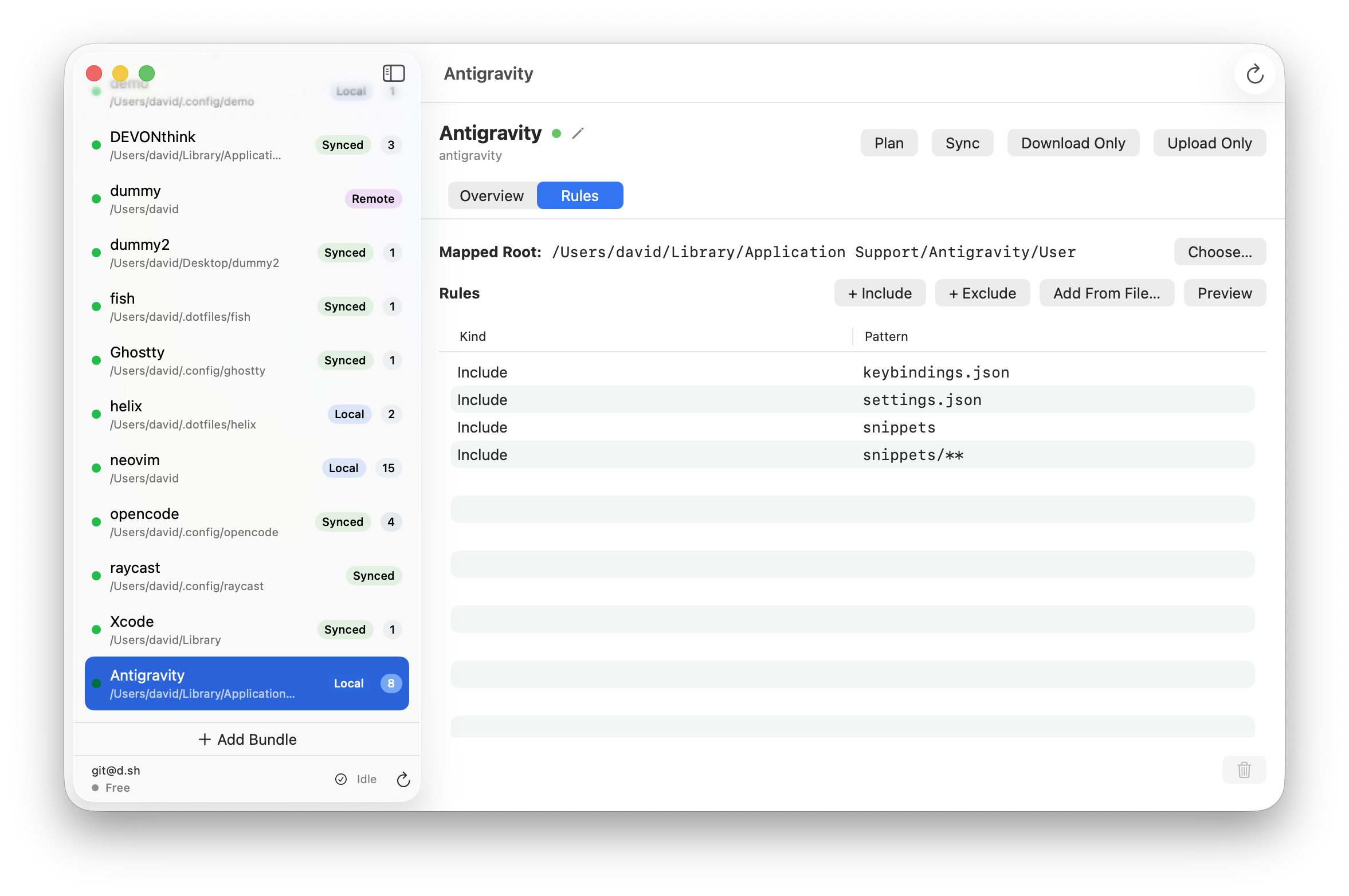
Step 3: Hit Sync
Click Sync on your first Mac, then run Sync on your other Macs with the same account and encryption passphrase.