Sync encrypted Ghostty config on macOS and Linux
End-to-end encrypted sync for Ghostty terminal config, custom themes, and shaders across macOS and Linux with Synclet.
Ghostty stores its configuration as plain text under ~/.config/ghostty/, which makes it straightforward to keep fonts, keybindings, themes, and custom shaders consistent across macOS and Linux. Synclet is a native macOS desktop app and standalone Linux/Windows CLI that encrypts those files locally with age using your passphrase before syncing them to Synclet Cloud or your own Dropbox.
Where Ghostty reads its config
Both macOS and Linux read $XDG_CONFIG_HOME/ghostty/config (defaulting to ~/.config/ghostty/config), along with custom theme files in ~/.config/ghostty/themes/ and custom shaders you place in ~/.config/ghostty/shaders/.
~/.config/ghostty/
├── config
├── themes/
└── shaders/
On macOS, Ghostty also reads ~/Library/Application Support/com.mitchellh.ghostty/config and lets it override values from ~/.config/ghostty/config. If you sync between macOS and Linux, keep your settings in ~/.config/ghostty/config and remove the Application Support copy so both platforms read one file.
Handling macOS and Linux differences
Ghostty ignores platform-specific options on the other operating system (for example, macos-titlebar-style and macos-option-as-alt are ignored on Linux), so one shared config file works for most setups.
If you need per-machine overrides such as a different font-size on a laptop versus a desktop monitor, add an optional include line at the bottom of ~/.config/ghostty/config:
config-file = ?localThe ? prefix tells Ghostty to ignore the file if it does not exist. Then exclude local from your Synclet bundle so each machine keeps its own overrides.
Step 1: Install Synclet
Use the desktop app on your Mac(s) and the standalone CLI on your Linux machine(s). Do not run both on the same machine, since they keep separate local state.
- macOS: Download Synclet for macOS
- Linux:
npm install -g synclet
Sign in through the macOS app on macOS, or run synclet auth login on Linux (pass --backend dropbox to store encrypted files in your own Dropbox account).
Step 2: Create the Ghostty bundle
On macOS (desktop app)
- Click
+to create a new bundle. - Click
Choose Folder, press Command-Shift-G, and enter~/.config/ghostty. - Keep
All files in folder(**) and clickCreate Bundle. If you use per-machine overrides, open the Rules tab and addlocalunder Excludes. - Check the live
Matched Local Fileslist in theRulestab, then clickSync.
On Linux (CLI)
synclet config add ghostty ~/.config/ghostty -e local
synclet plan -b ghostty
synclet up -b ghostty
This stores the bundle root portably as $HOME/.config/ghostty, includes everything inside the folder, and skips the optional machine-local local override file.
Step 3: Restore on another Mac or Linux machine
On a second Mac, sign in with the same account and encryption passphrase, import the ghostty bundle, and click Download Only.
On Linux, install the CLI and run:
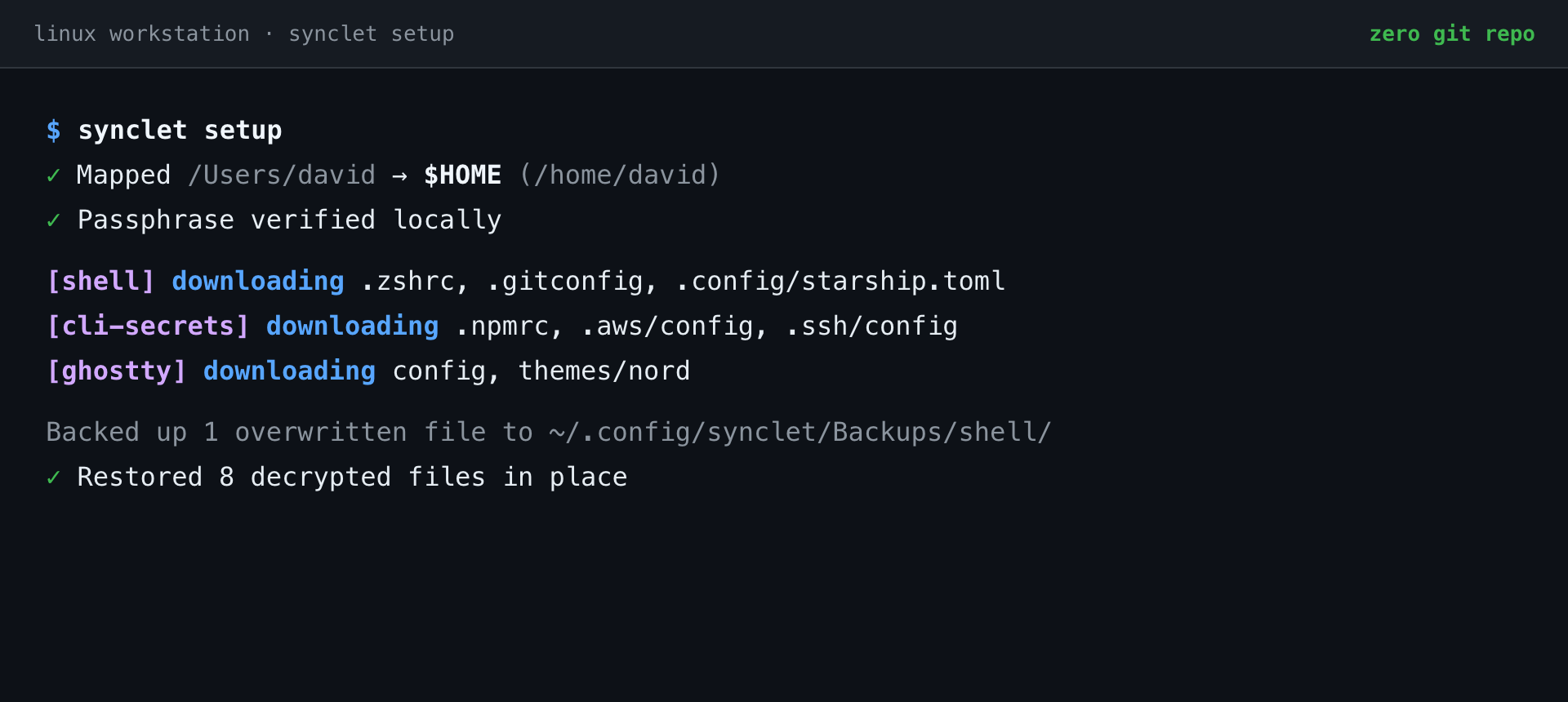
synclet setupsynclet setup pulls the ghostty bundle definition, maps /Users/<name>/.config/ghostty to $HOME/.config/ghostty, and downloads your files. Existing local files that differ are backed up under ~/.config/synclet/Backups/ghostty/ before they are replaced.
Reload Ghostty after syncing (Command-Shift-, on macOS or Ctrl-Shift-, on Linux) or reopen the terminal to apply changes.
If you also use iTerm2 on macOS, see How to sync iTerm2 settings across Macs. For scheduled background sync on Linux, see How to set up the Synclet (ex ConfigMesh) CLI; on macOS, sync from the desktop app.