Encrypted dotfiles and secrets without Git
End-to-end encrypted sync for shell dotfiles, SSH and AWS configs, .npmrc, and macOS app preferences across machines without a Git repo.
Bare Git repositories, GNU Stow, and chezmoi work well for public shell configs, until you also want to sync .npmrc, .aws/config, .ssh/config, .env files, or binary macOS preferences. Keeping sensitive files out of Git history requires separate GPG or age encryption scripts, template files, and constant care not to commit a token by mistake.
Synclet is a native macOS desktop app and standalone CLI for Linux, Windows, and SSH servers that encrypts every file locally with age using your passphrase before uploading to Synclet Cloud or your own Dropbox. Regular dotfiles, sensitive CLI configs, and macOS app preferences use the same bundles with no Git repository and no symlinks.
What to put in your bundles
Split files into a few small bundles so you can choose what each machine receives:
- Shell config:
~/.zshrc,~/.zprofile,~/.bashrc,~/.config/starship.toml,~/.config/fish - Developer and CLI config:
~/.gitconfig,~/.npmrc,~/.config/gh/config.yml,~/.ssh/config,~/.aws/config - App preferences: macOS
.plistfiles and editor settings folders under~/Library/or~/.config/
Synclet skips files larger than 1 MiB and excludes .git, node_modules, and .DS_Store by default. The CLI also skips symlinks instead of dereferencing them.
If you sync ~/.ssh files, keep private keys on a strong, unique Synclet passphrase and verify chmod 600 permissions after restoring on a new machine.
Step 1: Install Synclet and sign in
Use the desktop app on Macs and the standalone CLI on Linux or Windows (pick one client per machine; the app and CLI do not share local state):
- macOS: Download Synclet for macOS
- Linux / Windows / SSH:
npm install -g synclet
Sign in from the macOS app, or run on a CLI machine:
synclet auth login
# Or store encrypted blobs in your own Dropbox account:
synclet auth login --backend dropbox
Step 2: Add your dotfiles bundles
On macOS (desktop app)
- Click
+to create a bundle and choose the bundle root (for example,~or~/.config/fish). - Add include rules for the files or folders you want (such as
.zshrc,.gitconfig,.npmrc, orconf.d). - Check the live
Matched Local Fileslist in theRulestab, then clickSync.
On Linux or Windows (CLI)
Create bundles directly from the CLI without editing YAML by hand:
synclet config add shell ~ .zshrc .zprofile .gitconfig .config/starship.toml
synclet config add cli-secrets ~ .npmrc .aws/config .ssh/config
synclet config add fish ~/.config/fish config.fish conf.d functions -e "conf.d/*.local.fish"
Preview the matched files, then upload your first encrypted snapshot:
synclet plan
synclet up
The free plan covers 1 bundle (up to 10 files) on Synclet Cloud. Pro lifts bundle and file limits on Synclet Cloud and Dropbox; a One-time license includes unlimited bundles and files on your own Dropbox account.
Step 3: Restore on another machine
On macOS (desktop app)
- Install Synclet for macOS and sign in with the same account and encryption passphrase.
- Open your remote bundles, click
Import Bundle, and pick the local folder. - Click
Download Onlyto pull your encrypted configs.
On Linux or Windows (CLI)
- Install the CLI (
npm install -g synclet) and sign in with the same account and encryption passphrase. - Run
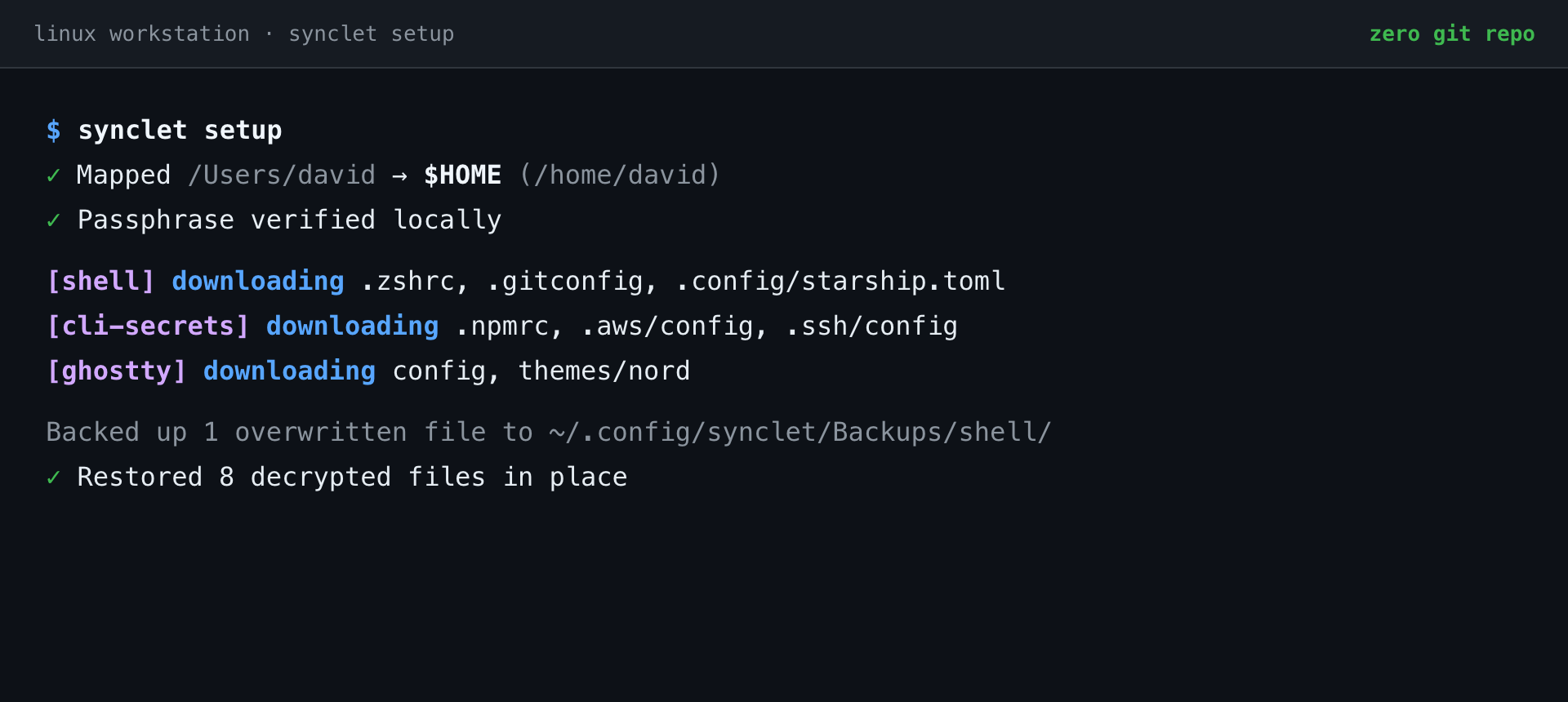
synclet setupto map/Users/<name>,/home/<name>, andC:\Users\<name>paths to your local$HOMEand download your files.
When restoring with the CLI, Synclet saves a backup copy to ~/.config/synclet/Backups/<bundle>/<timestamp>/ before overwriting any existing local file with different content.
Ongoing sync and conflicts
Click Sync in the macOS app on Macs, or run synclet sync on CLI machines. On Linux or Windows, you can also schedule background runs:
synclet service install --interval 15mIf two machines edit the same file between syncs, synclet sync applies non-conflicting files, skips the conflict, and exits non-zero. Resolve it explicitly with synclet sync --prefer local or synclet sync --prefer remote.
When Git or chezmoi is a better fit
If you want a public dotfiles repository to share with others, line-by-line Git commit history, or template generation across different hostnames, stick with Git or chezmoi. Use Synclet when you want private, client-side encrypted sync across your own machines without maintaining symlinks or encryption scripts.
See How to set up the Synclet (ex ConfigMesh) CLI for full command reference, or Sync encrypted dotfiles and configs to Dropbox to store everything in your own Dropbox account.