Sync encrypted dotfiles and configs to Dropbox
Encrypt dotfiles and app configs locally before syncing them to your own Dropbox account on macOS, Linux, and Windows without mounting a virtual drive.
Dropbox syncs files across machines, but anything dropped into a normal Dropbox folder is stored without client-side encryption. Tools like Cryptomator encrypt Dropbox folders behind a mounted virtual drive, which works for documents but is awkward for ~/.zshrc, ~/.config, or ~/Library/Preferences because apps expect files at fixed paths in your home directory.
Synclet is a macOS desktop app and standalone Linux/Windows CLI that encrypts each config file locally with age using your passphrase and uploads the ciphertext to an isolated /Apps/Synclet/ folder in your Dropbox account. Your files stay at their real paths on disk with no symlinks or mounted volumes.
Comparing ways to sync configs with Dropbox
| Synclet + Dropbox | Dropbox + symlinks | Cryptomator + Dropbox | |
|---|---|---|---|
Live config paths (~/.zshrc, ~/Library/Preferences) |
Real files stay in place; works with macOS cfprefsd |
Symlinks into ~/Dropbox; breaks macOS 14+ preference plists |
Mounted FUSE or WebDAV drive; configs still need symlinks |
| What gets encrypted | File contents encrypted locally with age; paths live under /Apps/Synclet/ |
No client-side encryption | Encrypts both file contents and filenames inside the vault |
| Dropbox account access | App Folder OAuth token scoped only to /Apps/Synclet/ |
Full Dropbox account synced by desktop client | Full Dropbox account synced by desktop client |
| Preview & conflicts | Diff preview of uploads, downloads, and conflicts before writing | Background sync; creates conflicted copy files on collision | Background sync; creates conflicted files inside the vault |
| Headless Linux / SSH | Single standalone CLI binary over HTTPS; no Dropbox daemon | Requires headless Dropbox daemon | Possible via cryptomator-cli, plus Dropbox sync and FUSE mount |
Use Cryptomator when you want a general-purpose encrypted vault you can also browse on iOS or Android. Use Synclet when you want live dotfiles and Mac app preferences synced in place across Macs and Linux servers.
Requirements
- A Dropbox account
- A Synclet Pro subscription or One-time license (see billing)
- The Synclet macOS app on Macs, or the standalone CLI (
npm install -g synclet) on Linux, Windows, or headless servers (pick one client per machine; the app and CLI do not share local state)
Step 1: Connect your Dropbox account
In the macOS app, open Settings, select Account, find Cloud Storage, click Change…, pick Dropbox, then click Connect… under Dropbox Connection to finish OAuth sign-in in your browser.
On Linux, Windows, or a headless server with the CLI, sign in with:
synclet auth login --backend dropboxOn a headless server over SSH, the command prints a sign-in URL. Open it in any browser, approve Dropbox access, and paste the returned code back into your terminal.
Step 2: Create bundles and run your first sync
In the macOS app, click + to create a bundle, pick the root directory, and choose the files or folders to include. In the CLI, define bundles directly without editing YAML by hand:
synclet config add dotfiles ~ .zshrc .gitconfig
synclet config add ghostty ~/.config/ghostty
synclet config add codex ~/.codex config.toml AGENTS.md skills -e skills/.system
Preview what will be uploaded, then upload:
synclet plan
synclet up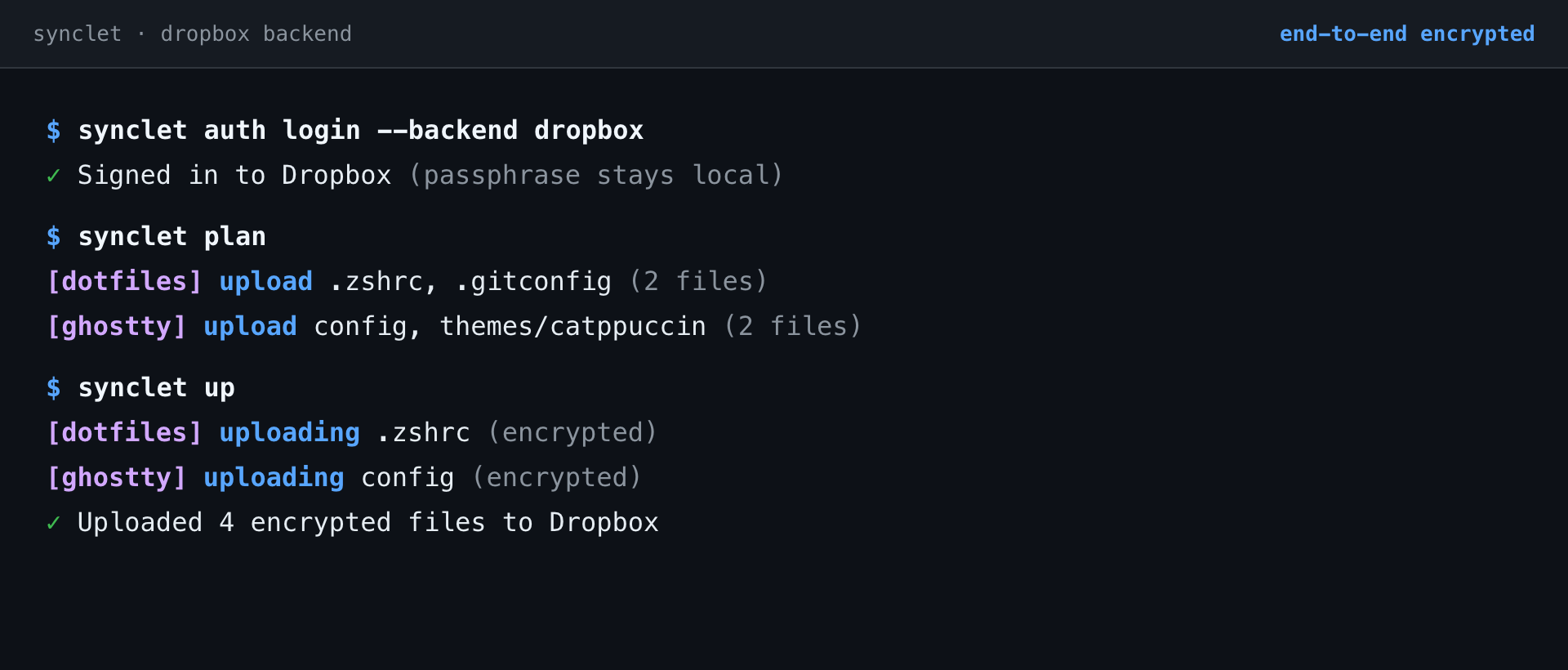
In the CLI, Synclet prompts for your encryption passphrase on the first run (or reads SYNCLET_PASSPHRASE in scripts). In the macOS app, you set your passphrase during setup or in Settings. Files larger than 1 MiB are skipped automatically, and the CLI skips symlinks.
Step 3: Restore on another machine
- Install Synclet on the second machine and sign in to the same Dropbox account.
- Enter the same encryption passphrase.
- In the macOS app, import your remote bundles and click
Download Only. On the CLI, runsynclet setup --backend dropboxto pick your remote bundles and download them.
When restoring with the CLI, Synclet writes a backup copy to ~/.config/synclet/Backups/<bundle>/<timestamp>/ before replacing an existing local file with different contents.
Trade-offs compared to Synclet Cloud
When you use Dropbox as your storage backend instead of Synclet Cloud, you keep full custody of the encrypted blobs inside your own Dropbox account, and you can pair it with a One-time license instead of a subscription. The Synclet web dashboard and Synclet-managed file version history apply only to Synclet Cloud, though Dropbox keeps its own file history according to your Dropbox plan.
See Encrypted Dropbox sync overview for architecture and plan details, or Encrypted Mackup alternative for macOS if you are migrating away from Mackup.