Encrypted Claude Code, Codex, and Cursor sync
End-to-end encrypted sync for Claude Code, Codex, and Cursor instructions, skills, commands, and MCP server configs across macOS and Linux.
Coding agents store reusable configuration (instructions, skills, slash commands, and MCP servers) in the same folders as local session logs, caches, and worktrees. Syncing the whole directory with Git or a plain cloud folder either pulls in megabytes of machine-local state or exposes API keys stored in MCP config files.
Synclet is a native macOS desktop app and standalone CLI for Linux, Windows, and SSH servers. It lets you pick the exact files and folders to sync in ~/.claude, ~/.codex, and ~/.cursor, encrypts them locally with age using your passphrase, and syncs them to Synclet Cloud or your own Dropbox account.
What to include and what to skip
Synclet already excludes .claude/worktrees, .codex/worktrees, .cursor/worktrees, .git, node_modules, and .DS_Store by default, and skips files larger than 1 MiB. For each tool, include only the files you author or maintain.
Claude Code (~/.claude)
- Include:
CLAUDE.md,settings.json,commands,skills,agents - Leave out:
projects,todos,debug,file-history,statsig, and local caches
Directory names match recursively, so adding skills includes everything inside ~/.claude/skills/.
Codex (~/.codex)
- Include:
config.toml,AGENTS.md,skills - Exclude:
skills/.system - Leave out:
sessions,log, and local state databases
Cursor (~/.cursor and editor settings)
- In
~/.cursor: includemcp.jsonandskills(orrules), leaving outextensionsand cache folders. - For editor preferences on macOS (
~/Library/Application Support/Cursor/User): includesettings.json,keybindings.json, andsnippets.
MCP config files often hold bearer tokens or API keys. If any of those tokens were ever committed to an unencrypted Git repository, rotate them.
Step 1: Install Synclet
Use the desktop app on Macs and the standalone CLI on Linux or Windows (do not run both on the same machine, since they keep separate local state):
- macOS: Download Synclet for macOS
- Linux / Windows / headless SSH:
npm install -g synclet
Sign in through the macOS app, or run synclet auth login on Linux (pass --backend dropbox to store encrypted files in your own Dropbox account).
Step 2: Create your agent bundles
In the macOS app, click +, press Command-Shift-G in the folder picker to open ~/.claude, ~/.codex, or ~/.cursor, add the include and exclude rules above, and check the live Matched Local Files list in the Rules tab before syncing.
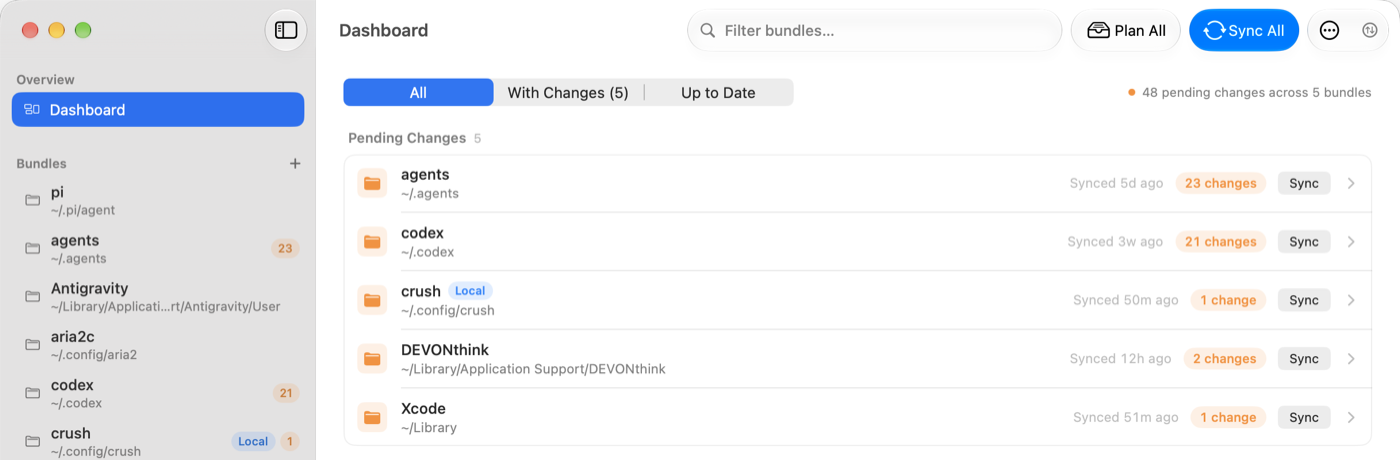
On Linux or headless machines using the CLI, create the same bundles without editing YAML by hand:
synclet config add claude ~/.claude CLAUDE.md settings.json commands skills agents
synclet config add codex ~/.codex config.toml AGENTS.md skills -e skills/.system
synclet config add cursor ~/.cursor mcp.json skills
Preview the upload plan and push your first snapshot:
synclet plan
synclet up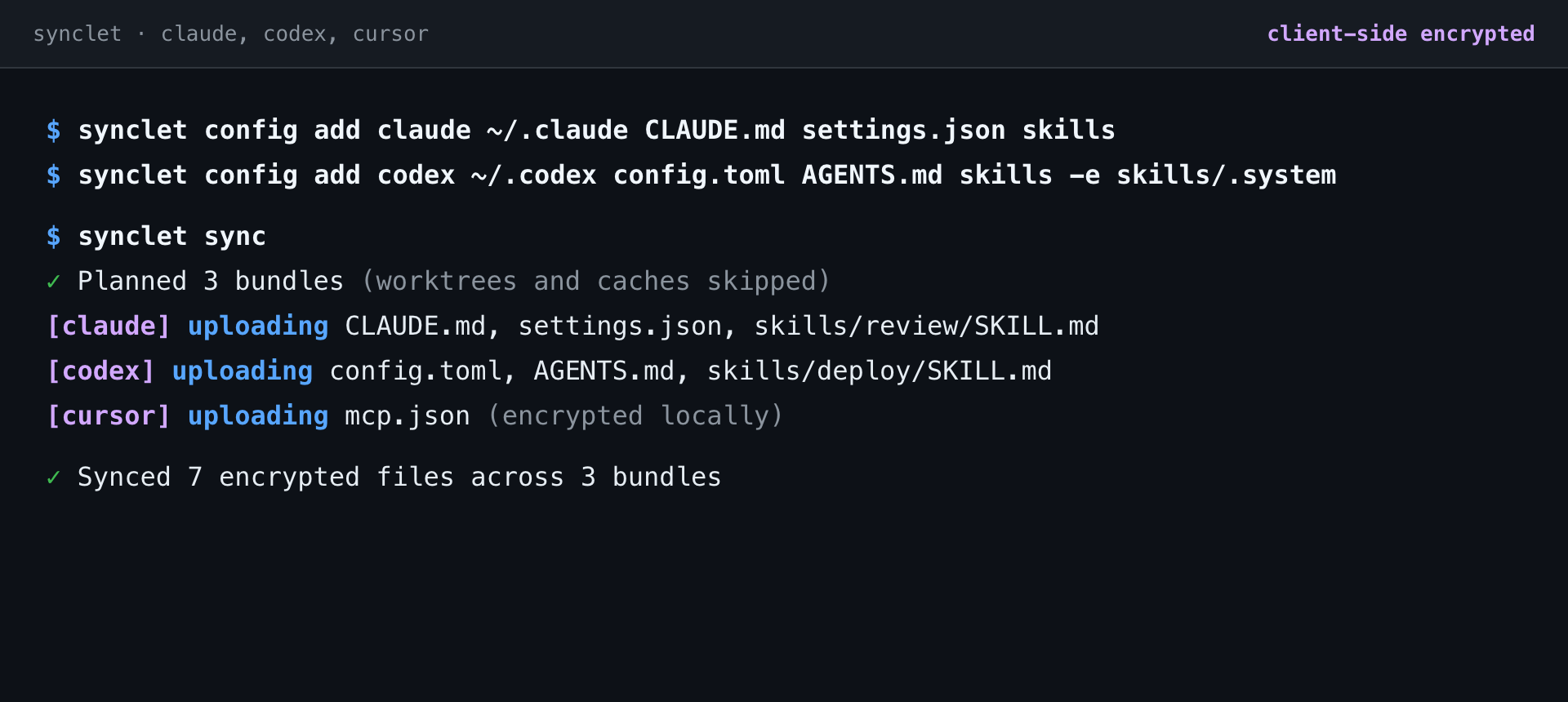
Step 3: Restore on another Mac or Linux machine
On a second Mac, sign in to the macOS app with the same account and passphrase, import the remote bundles, and click Download Only.
On Linux or over SSH, run guided setup:
synclet setupsynclet setup pulls your remote bundle list, converts /Users/<name> paths to /home/<name> automatically, previews the restore plan, and downloads your files. Existing local files that differ are backed up under ~/.config/synclet/Backups/<bundle>/<timestamp>/ before they are replaced.
Keep configs synced automatically on Linux
To sync agent rules and skills in the background on Linux, Windows, or headless servers running the CLI, install the scheduled service:
synclet service install --interval 15mFor an overview of supported agent harnesses and pricing, see AI coding agent config sync. For full CLI flags, conflict resolution, and config.yaml options, see How to set up the Synclet (ex ConfigMesh) CLI, or see Encrypted dotfiles and secrets without Git to sync shell dotfiles alongside your agent setup.